


Crop, Cut & Trim Video Editor
4.56.09K Reviews
App Specs
- Version
- 3.4.14
- Updated On
- License
- Free
- Downloads
- 10,000,000+
- Developer
- ZipoApps
- Categories
- Video Players & Editors
- Platform
- Android, iOS
Screenshots
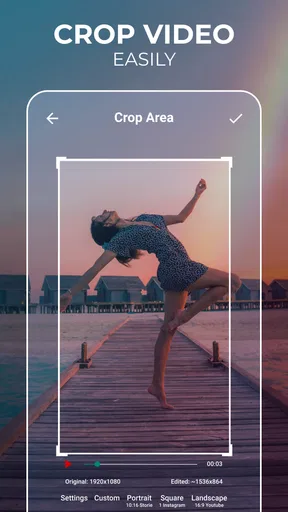
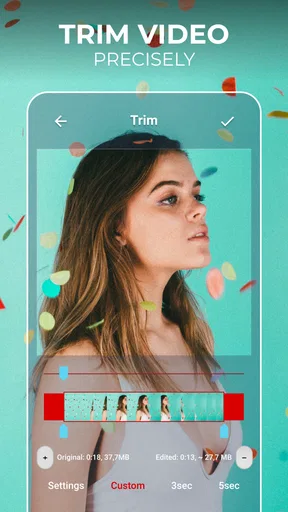
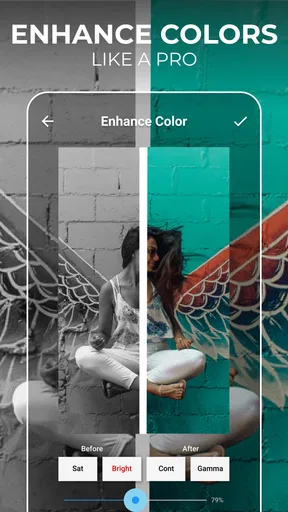
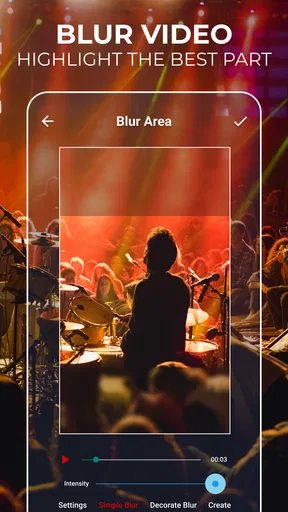
 Analysis by AppCompare
When I need to turn a clip into something ready to share, I don’t always want a full editing suite between me and the finished video. Sometimes the job is simply removing the awkward beginning, tightening the ending, or changing the frame so the subject fits. Crop, Cut & Trim Video Editor is built around that kind of practical edit: it is a mobile video editor from ZipoApps, aimed at people who want to shape a clip without making editing a project of its own.
A small edit can make a clip publishable
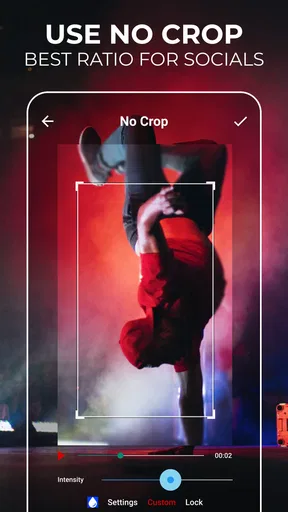
I find the app most useful when I already know what I want the final clip to do. A long recording of a child’s school performance, a cooking step filmed from the wrong angle, or a quick product demonstration may contain one clear moment worth sharing. Trimming can remove the wait before the action, while cropping can make the important part more prominent or better suited to a social post.
That narrow focus is a strength, but it also sets expectations. This is not the tool I would choose to build a story from many scenes or to manage a complicated production. It makes more sense as a quick finishing station for individual clips: select the useful portion, adjust its framing, and move on. If you regularly make short videos from phone footage, that focused workflow can be more appealing than opening a larger editor just to remove a few seconds.
Choosing the right footage before editing
One practical tip is to decide where the video will be watched before cropping it. A clip intended for a narrow phone screen may benefit from a tighter frame, while a family video meant for a television or a group chat may need more of the original scene left visible. Cropping is not merely a cosmetic choice: it can remove context, cut off a person’s hand, or make movement feel cramped. I would preview the whole action after reframing, not just the opening image.
It also helps to keep an untouched copy of a clip when the original framing might matter later. A crop that looks right for one post may not suit another, and trimming away a pause can remove a useful lead-in if you later decide to add narration or combine the footage with other material. Treating the first edit as a prepared version rather than the only copy gives you room to change direction without having to recreate the original recording.
Getting Started with Crop, Cut & Trim Video Editor
First things first, let’s talk about getting this app up and running on your device. Whether you’re an Android aficionado or an iOS devotee, Crop, Cut & Trim Video Editor is available on both platforms. Downloading and installing it is as straightforward as it gets. A few taps, and you’re ready to dive into the world of video editing.
The interface is clean and intuitive, which is a big plus. No one wants to spend ages figuring out how to make a simple cut, right? As soon as you fire up the app, you’re greeted with options to start a new project or continue editing an existing one. The layout is user-friendly, making it easy even for beginners to jump right in.
Worth Reading Before You Choose

EA SPORTS FC Mobile 26 Is a Bigger Football Game, but It Takes Time

Flipboard Shows What News Apps Must Do Beyond the Feed

Switching to Android Auto Means Rethinking Your Driving Routine

Google Calendar Makes a Crowded Week Easier to Manage

Ludo King Makes the Most of the Minutes Between Plans

Baby Panda World Brings Quick Play to Modern Phones, but Its Game Library Feels Busy
Features That Make Editing a Breeze
One of the standout features of this app is its simplicity combined with powerful editing tools. You’ve got your basic functions like cutting, trimming, and cropping videos, but it doesn’t stop there. The app also offers a range of filters and effects that can give your videos a professional touch. And let me tell you, applying these effects is as easy as pie.
The real magic happens when you start exploring the advanced editing options. You can adjust the video speed, reverse clips, and even add music from your library. Imagine turning a mundane family video into a fast-paced montage or a slow-motion masterpiece. The possibilities are endless, and that’s what makes this app so fun to use.
Making a deliberate pass through an edit
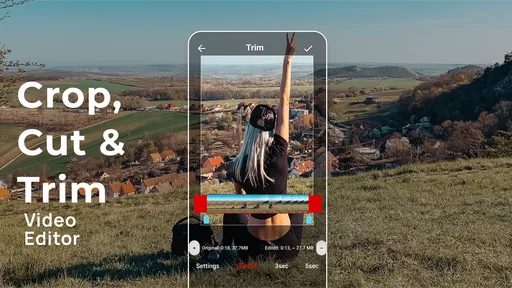
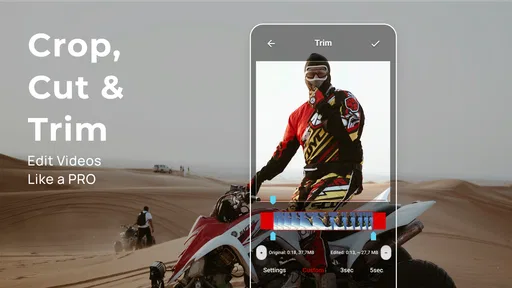
For a more reliable result, I would separate the edit into two passes. First, set the in and out points so the clip begins and ends on useful action. Then watch it from start to finish and make the crop decision with the movement in mind. A framing that looks fine on a still frame can feel awkward when a person walks across the shot or an object enters from the edge. This check is especially worthwhile for demonstrations, where the hands and the thing being handled both need to stay in view.
The additional creative options are best used with a clear purpose. Speed changes can make a long, repetitive process easier to watch, while reversing a short action can create a playful effect; neither automatically improves the clip. Music from your library can help set a mood, but it may compete with speech or useful ambient sound. I’d test the edit with the phone speaker as well as headphones, because a soundtrack that feels subtle in one listening situation can dominate in another.
Why You’ll Love It
Now, let’s talk about why this app might just become your new favorite tool for video editing. For starters, it’s incredibly versatile. Whether you’re looking to make quick edits or spend time perfecting every frame, Crop, Cut & Trim Video Editor accommodates both needs effortlessly.
Another big plus is the app’s performance. I’ve used quite a few video editors that lag or crash regularly, but this one runs smoothly. It handles high-resolution videos like a champ, which is crucial if you’re shooting in 4K or even experimenting with RAW footage.
A realistic phone-to-share workflow
Picture recording a short recipe at home: the phone keeps running while ingredients are arranged, the camera catches a few seconds of fumbling, and the useful instruction is buried in the middle. I’d use this editor to isolate the clear explanation, crop out distracting space around the work surface, and then check that the final frame still shows the food and the action together. If the clip needs a livelier pace, a modest speed adjustment may help; if the spoken instruction matters, I would leave the original sound prominent rather than adding music by habit.
That kind of one-clip cleanup is where this app can save time. For a sequence made from several camera angles, titles, captions, and carefully balanced audio, a timeline-based editor is usually a better fit. The distinction is not about one tool being universally superior: it is about whether the job is refining a single recording or assembling a finished piece from multiple parts.
Iteration without overworking the footage
Mobile editing makes it tempting to keep adjusting a clip until it feels polished, but each change should solve a visible problem. I’d compare the tighter crop with the original view and ask whether the subject is easier to follow, not merely larger. I’d also replay the cut at normal speed; a transition point that seems precise while scrubbing can still feel abrupt when watched naturally. Those checks are particularly useful for clips with speech, where cutting too close to a word can make the result feel careless.
Before sharing, it is sensible to consider the destination and the source file. A trimmed or cropped version may be perfect for a quick message but not for keeping as an archive or reusing in a different format. I would retain the original when future edits are likely, then treat the exported edit as the copy intended for posting. That simple habit prevents a convenient short version from becoming the only version left.
Limitations and Considerations
Of course, no app is perfect. While Crop, Cut & Trim Video Editor does a lot of things well, there are a few limitations worth mentioning. Some advanced features are locked behind a paywall, which might be a dealbreaker for those looking for a completely free solution. However, the free version still offers plenty of tools to get started with basic editing.
Also, while the app is great for quick edits, professional video editors might find it lacking in some areas. If you’re looking for features like multi-track editing or detailed color grading, you might need to look elsewhere or use this app in conjunction with other software.
What to expect before choosing it
The app is free to download, with in-app purchases ranging from under a dollar to around one hundred and fifty dollars per item. That broad range is a reason to check the specific purchase details before paying rather than assume every extra is a small one-time add-on. Its audience rating is Everyone, so it is positioned for general use, and it has an average rating of 4.5 from around 356,000 ratings, with more than 10 million installs. Those figures suggest a widely used option, but they cannot tell you whether its editing style fits your own routine.
It first appeared on February 20, 2016, and the current version is 3.4.14, with Android 8.0 or later required. If you are choosing between this and the editor already bundled with your phone, the built-in option may be enough for a single trim or a basic crop. I’d consider this app when I want its dedicated editing controls and the extra creative tools described above; I’d skip it if I need a detailed multitrack timeline, precise color work, or a complete production workflow in one place.
Final Thoughts
All in all, Crop, Cut & Trim Video Editor is a solid choice for anyone looking to edit videos on their mobile device. It’s user-friendly, packed with features, and performs reliably. Whether you’re a casual user looking to make quick edits or someone who enjoys diving deep into the editing process, this app has something to offer.
If you’re curious to try it out, head over to the app store and give it a download. You might just find that it’s the perfect tool to transform your video editing game. Happy editing!
Who I’d recommend it to
I’d point a beginner toward this editor when the goal is understandable and contained: shorten a clip, change its framing, or experiment with speed and reverse effects without first learning a large editing workspace. It can also suit someone who records regularly but publishes only occasional short clips, since the value is in getting from raw footage to a cleaner shareable version without turning every edit into a production session.
I would steer creators with a more involved brief toward a different class of app. If your finished video depends on arranging many clips, placing captions precisely, mixing several audio sources, or applying consistent color treatment across a sequence, look for a full timeline editor instead. The same is true if you need predictable control over a professional delivery format: a focused phone editor is convenient, but convenience is not a substitute for the detailed controls those jobs require.
Handoff and the last quality check
Before sending a finished clip, I’d watch the exported result all the way through rather than relying only on the editing preview. Check that the opening starts where the action makes sense, the ending does not cut off a final word or gesture, and the crop has not hidden something important near the edges. For a clip going to a group chat, a quick playback on the same phone is a practical final check; for a public post, I’d also make sure the framing reads clearly at a glance.
There is one useful trade-off to keep in mind when choosing a mobile editor: a quick workflow is valuable only if it matches the intended handoff. If you are making a simple clip for friends, a clean trim may matter more than fine control over every visual detail. If the video represents a business, a class, or a carefully planned channel post, I would spend time in a more capable editor and review the result on the platform or screen where people will actually see it.
My recommendation in context
For everyday editing, I see this as a practical tool rather than a complete studio. Its appeal is strongest when the raw footage is already close to usable and needs a few purposeful decisions before it leaves your phone. The crop, cut, and trim focus gives casual creators a clear starting point, while filters, effects, speed changes, reversal, and music provide room to make a clip feel more considered without demanding a complicated workflow.
My advice is to try it on a low-stakes clip first, such as a short family moment or a quick demonstration, and judge the result by how naturally it plays after editing. If that process feels easy and the output suits where you plan to share it, the app is a sensible addition to your phone. If you quickly find yourself wanting multiple layers, detailed grading, or more exact control over a longer project, that is a sign to move to a fuller editor rather than fight this one into doing a different job.
Pros
- Intuitive interface for easy editing.
- Supports multiple video formats.
- Includes filters and effects.
- Fast export without quality loss.
- Offline editing available.
Cons
- Limited free version features.
- Occasional in-app ads.
- No direct social media sharing.
- Requires significant storage space.
- Advanced tools need premium.
FAQs for Crop, Cut & Trim Video Editor
What features does Crop, Cut & Trim Video Editor offer?
Crop, Cut & Trim Video Editor provides a comprehensive suite of tools for editing videos on your mobile device. Users can crop videos to remove unwanted sections, cut clips to the desired length, and trim edges for a polished look. The app also includes filters, transitions, and audio editing features to enhance your videos.
Is Crop, Cut & Trim Video Editor user-friendly for beginners?
Yes, the app is designed with an intuitive interface that caters to both beginners and experienced users. It offers step-by-step guidance and tutorials to help new users navigate the editing tools easily. The simple layout ensures that even those with minimal editing experience can create professional-looking videos.
Are there any in-app purchases or subscriptions required?
While Crop, Cut & Trim Video Editor offers a free version with basic features, there are in-app purchases available for advanced tools and features. Users can opt for a subscription to access premium content, including additional filters, transitions, and ad-free editing. This allows for a more enriched editing experience.
Does the app support exporting in high definition?
Yes, Crop, Cut & Trim Video Editor supports exporting videos in high definition. Users can choose the export quality, including HD and Full HD, ensuring that the final output meets their quality standards. This feature is perfect for those looking to upload their videos to social media platforms or other professional uses.
What devices are compatible with Crop, Cut & Trim Video Editor?
The app is available for both Android and iOS devices. It is compatible with most smartphones and tablets running the latest operating systems. Users should ensure their devices are updated to the newest version for optimal performance and access to all features. Compatibility details are also listed on the app's download page.


